Pages

Like Us On Facebook

Showing posts with label Windows. Show all posts

Monday, December 12, 2016

Get Rid Of Windows 10 Upgrade Annoyance With A Single Click Forever...


I had earlier shared a trick on how to get rid of repeated and intrusive

annoying Windows 10 upgrade prompts from Microsoft on Windows 7 and Windows 8 machines, but Micrsosoft seems to be getting more aggressive
trying to push Windows 10 to Windows 7 and 8.1 users and it  is getting harder for users to prevent
the upgrade from getting installed automatically.


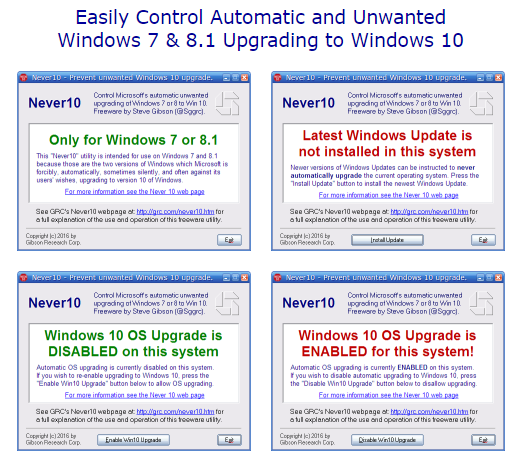
Responding to the significant user displeasure regarding the tactics used to push down the major OS upgrade down the throats of Windows users, Microsoft added features to its Windows Update facility which allowed it to be configured and not forcibly upgrade qualifying Windows 7 and 8.1 operating systems to Windows 10. However, Microsoft did not make this configuration simple. It requires the use of the group policy editor (which is not present in some qualifying systems) and/or the system registry. In other words, they created some deep internal configuration options but chose not to provide a simple user-interface to give their users the choice. Freeware utility Never10 allows users use the very same configuration in a simple to use manner. A single click is all it takes to "opt-out" from the Windows 10 upgrade prompts the Microsoft recommended way. The elegance of this “Never 10” utility, is that it does not install ANY software of its own.
Download Never10 for Windows :


Windows 10 --- Direct ISO Download Links For Microsoft Windows 10 Anniversary Update


If you have multiple PC's, downloading the Windows 10 Anniversary update as an ISO would save internet bandwidth costs and time. Here are direct ISO download link of the update Windows 10 build.


The x32 version Win10_1607_English_x32.iso is sized 3.14 GB and x64 version Win10_1607_English_x64.iso is 4.07 GB.

How To Fix And Recover Full Data From Corrupt SD Card Asking For Format


Plugging in the SD card into your PC to find out it is not getting detected could be the worst nightmare for anyone having thousands of pictures, music and other important data onto it. I have shared many How-to's and utilities to help users recover data but sadly all of them failed or were unable to recover all data on the SD-card which came to me for recovery. After doing a lot of research on why my computer is asking me to "Format" the SD-card instead of reading it's content, I was pretty sure the culprit was a bad file-system boot sector.


While 99.9% of the data recovery applications, both free and paid relied upon the same method to "Scan" and find data from the disk bypassing the file-system "registry" of the files, I was looking for something which will allow me to play with the damaged boot sector of the file-system to recover the underlying "file record registry". Luckily, what I found was not only open-source and free but supported advanced features which nothing else offered, the utility supported NTFS, FAT12, FAT16, FAT32, exFAT, ext2, ext3, ext4, btrfs, BeFS, CramFS, HFS, JFS, Linux Raid, Linux Swap, LVM, LVM2, NSS, ReiserFS, UFS and XFS filesystem and came with cross-platform binaries which can run under DOS, Windows (NT4, 2000, XP, 2003, Vista, 2008, Windows 7 (x86 & x64), Windows 10, Linux, FreeBSD, NetBSD, OpenBSD, SunOS and MacOS X.
The gem, I found was TestDisk - a powerful, free and open-source (GPLv2) data recovery software designed to help users recover lost partitions and/or make non-booting disks bootable again.
TestDisk supports:
  • Fixing partition tables and recovery of deleted partitions
  • Recovery of FAT32 boot sector from backup
  • Rebuilding of FAT12/FAT16/FAT32 boot sector
  • Fixing of FAT tables
  • Rebuilding NTFS boot sector
  • Recovery of NTFS boot sector from its backup
  • Fixing MFT using MFT mirror
  • Locating ext2/ext3/ext4 Backup SuperBlock
  • Recover deleted files from FAT, exFAT, NTFS and ext2 filesystem
Here is how I fully recovered my undetectable SD-Card asking to get "Formatted" when plugged into the PC:
1. Download TestDisk from here - http://www.cgsecurity.org/wiki/TestDisk_Download for your operating-system, I am using Microsoft Windows 7 for this tutorial and the SD-card is formatted with FAT32 file-system.
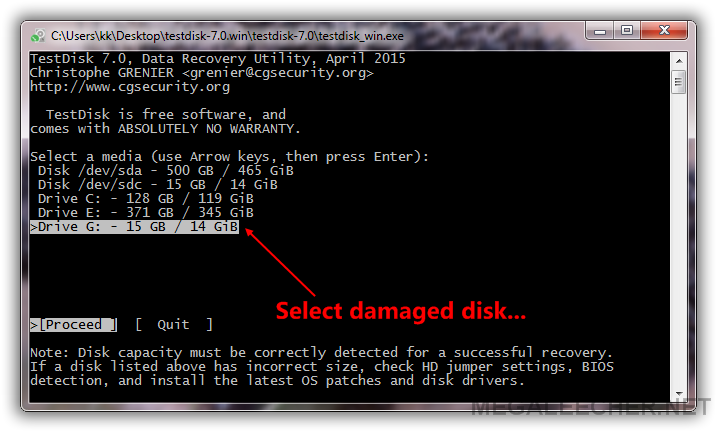
2. Run "testdisk_win.exe" and select the damaged disk from the provided plugged-in disk list, double check you are selecting the correct disk.

3. Go with the default option provided by TestDisk for "Partition Table Type", in my case it was "None" as shown below:

4. Select "Advanced" Filesystem Utils and Proceed.

5. Select "Boot" to enter boot sector repair options.


6. As you can see in the example below the card's boot-sector is bad, but luckily we have a backup boot sector which is OK, proceed with "Backup BS" option to copy backup boot sector to main record.


7. Confirm the action.

8. As you can see the main "Boot Sector" is now fixed and labelled OK.


9. The SD-card is now fixed and detected normally by computer, the full file-structure is intact and all files are accessible.

10. It is advised to backup full SD-card to your computer before unplugging the SD-card now as it can get corrupted once again.

Thursday, December 8, 2016

Show Hidden Files and Folders in Windows 7, vista, 8.x and Windows 10

Windows 7, Windows 8, Windows 10, and Vista hide important files and folders from view to keep users from deleting or otherwise modifying files they shouldn’t, but a simple checkbox can change that behavior.
The dialog has remained the same forever, but how to get to the dialog has changed a little in each version.

On Windows 8.x or 10


You can use the Ribbon’s View tab to get to the Options button.

What Are the FOUND.000 Folder and FILE0000.CHK File in Windows?


On some volumes, you may see a new folder called FOUND.000 with a file in it using the .CHK extension. Here’s where those come from, and what they’re for


These Are Fragments of Corrupted Files


Windows built-in chkdsk tool, short for “Check Disk”, creates this folder and file. Windows automatically runs Check Disk when it notices a problem with a file system. Those .CHK files are fragments of corrupted data—rather than deleting any corrupted data it finds, Check Disk puts it in a folder for you.